新机必备——Win11Debloat
简介
Win11Debloat 是由 Jeffrey Raphire 開發的一款簡單、易用且輕量的 PowerShell 腳本,僅需一鍵即可刪除預先安裝的 Windows 膨脹軟體,使用 Win11Debloat,使用者可以停用遙測功能,並透過移除侵入性介面元素、廣告和右鍵功能表項目來簡化使用體驗。
Windows 10 / 11 作業系統中預先安裝了大量的膨脹軟體應用程式和功能,這些應用程式和功能可能會影響系統的效能和使用者體驗,我們可藉由 Win11Debloat 來一鍵優化您的 Windows 10 / 11 作業系統。
Win11Debloat 不需要手動檢視所有設定或逐一移除應用程式,而是簡化流程,讓您移除大部分預先安裝在作業系統中的應用程式,從而為您找回大量的可用空間。雖然腳本會刪除大部分預先安裝的應用程式,但請注意有些應用程式無法依預設移除,包括 Microsoft People、Microsoft XBox App 或 Microsoft YourPhone。
腳本的其他值得注意的功能包括在 Windows 搜尋中停用 Bing、透過隱藏某些資料夾來清理檔案總管,以及停用常見於設定、開始功能表或鎖定螢幕中的提示和建議。上述的清理是針對 Windows 11 所做的,而 Windows 10 則是針對額外的功能,例如從右鍵功能表中移除「授予存取權限」、「包含在資料庫」和「分享」。
Win11Debloat – 一鍵刪除 Windows 預先安裝的膨脹軟體
Win11Debloat 使用教學簡介:
Win11Debloat 不需要任何安裝過程或額外的 DLL 檔,將下載的壓縮檔解壓縮後直接執行批次檔 Run.bat 即可使用。
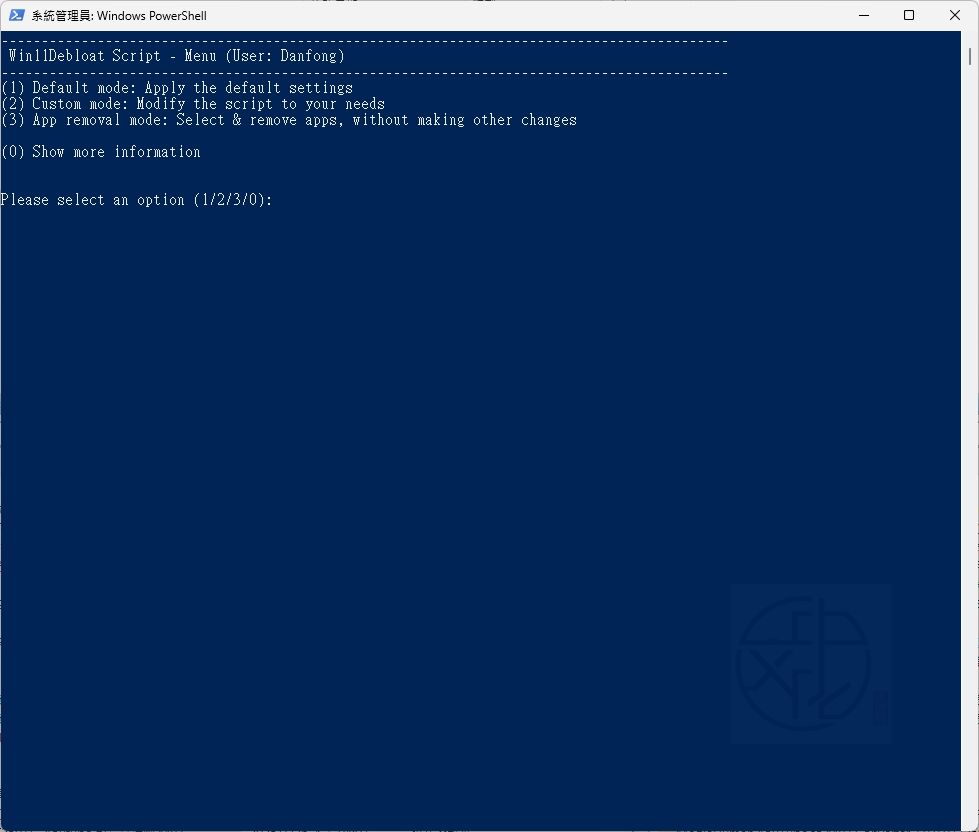
連按兩下 Run.bat 檔案啟動腳本。接受 Windows UAC 提示,以系統管理員身分執行腳本,這是腳本運作的必要條件。將會開啟一個新的 PowerShell 視窗,顯示 Win11Debloat 選單。建議選擇「預設模式」或「自訂模式」繼續。
(1) 預設模式: 套用預設設定(Default mode: Apply the default settings)
(2) 自訂模式: 根據您的需求修改腳本(Custom mode: Modify the script to your needs)
(3) 移除應用程式模式: 選擇並移除應用程式,無需進行其他變更(App removal mode: Select & remove apps, without making other changes)
(0) 顯示更多資訊(Show more information)
一般建議可以直接輸入 1 利用預設模式一鍵就能刪除 Windows 預先安裝的膨脹軟體,預設模式可讓您快速輕鬆地套用建議大多數使用者使用的變更,輸入 1 按下 Enter 顯示底下畫面
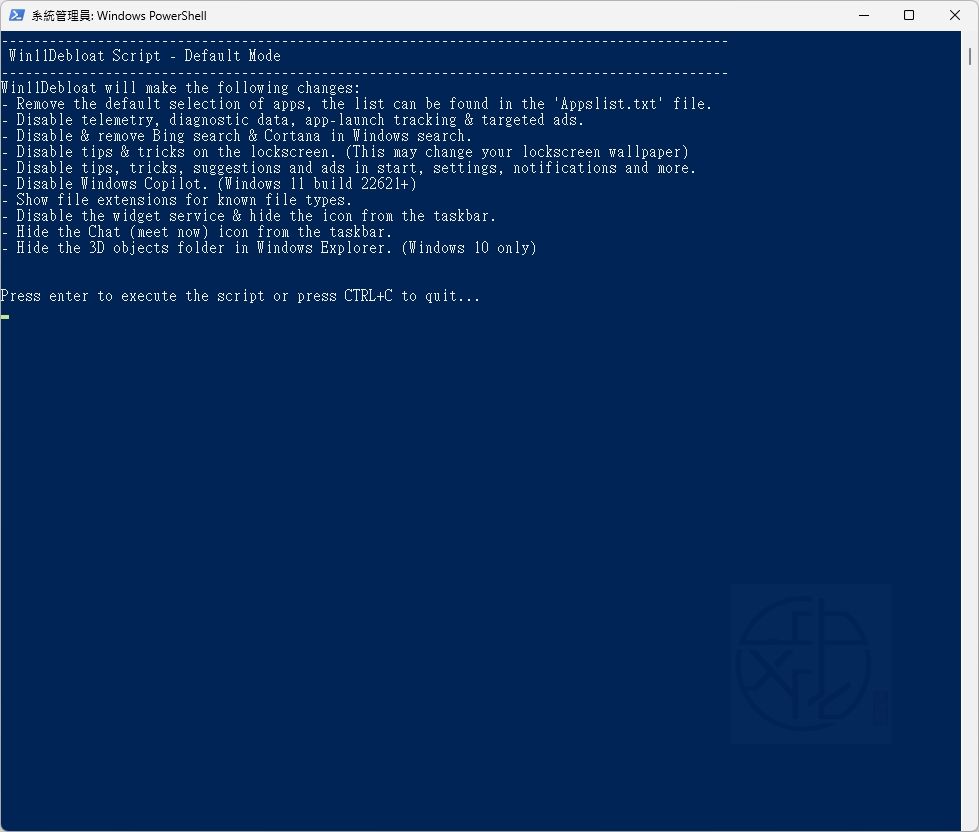
Win11Debloat 會進行以下變更(Win11Debloat will make the following changes):
– 移除預設選擇的應用程式,清單可在「Appslist.txt」檔案中找到(Remove the default selection of apps, the list can be found in the ‘Appslist.txt’ file.)
– 停用遙測、診斷資料、活動歷程記錄、應用程式啟動追蹤和目標廣告(Disable telemetry, diagnostic data, app-launch tracking & targeted ads.)
– 停用和移除 Windows 搜尋中的 Bing 搜尋和 Cortana(Disable & remove Bing search & Cortana in Windows search.)
– 停用鎖定畫面上的提示與技巧 (這可能會變更您的鎖定畫面桌布)(Disable tips & tricks on the lockscreen. (This may change your lockscreen wallpaper))
– 停用「開始」、「設定」、「通知」、「檔案總管」等中的提示、技巧、建議和廣告(Disable tips, tricks, suggestions and ads in start, settings, notifications and more.)
– 停用 Windows Copilot (Windows 11 組建 22621+)(Disable Windows Copilot. (Windows 11 build 22621+))
– 顯示已知檔案類型的副檔名(Show file extensions for known file types.)
– 停用小工具服務並從工作列隱藏圖示(Disable the widget service & hide the icon from the taskbar.)
– 從工作列隱藏聊天 (立即開會) 圖示(Hide the Chat (meet now) icon from the taskbar.)
– 隱藏 Windows 檔案總管中的 3D 物件資料夾 (僅限 Windows 10)(Hide the 3D objects folder in Windows Explorer. (Windows 10 only))
按下 Enter 執行腳本,或按下 CTRL+C 結束(Press enter to execute the script or press CTRL+C to quit)…
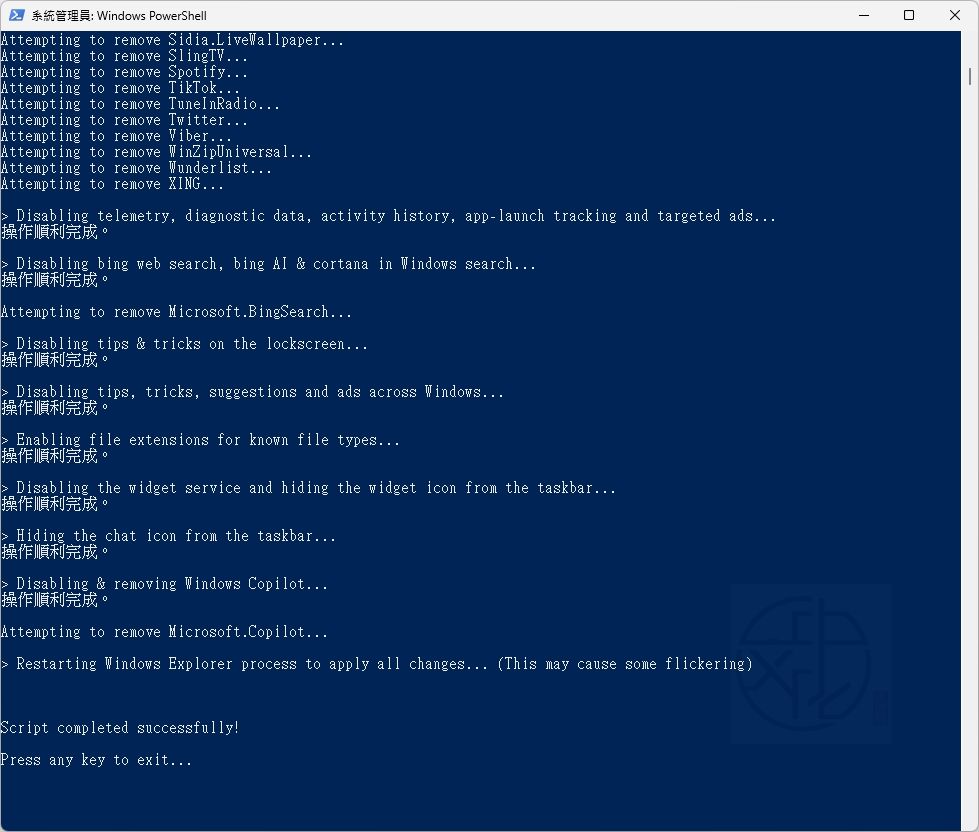
一旦按下 Enter 執行腳本之後,等待腳本執行完成後將顯示訊息「Script completed successfully!」代表已成功完成,即可按下任何鍵結束。
輸入 2 進入自訂模式,出現底下主畫面
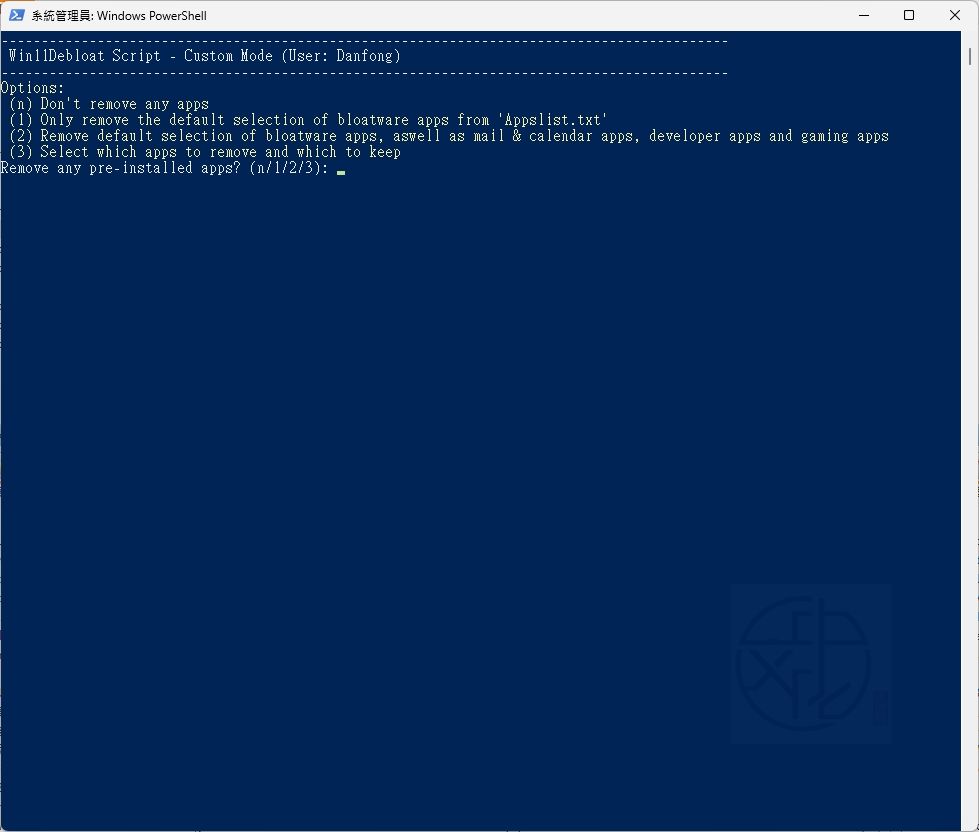
選項(Options):
(n) 不移除任何應用程式(Don’t remove any apps)
(1) 只移除「Appslist.txt」中預設選擇的膨脹軟體應用程式(Only remove the default selection of bloatware apps from ‘Appslist.txt’)
(2) 移除預設選取的膨脹軟體應用程式、郵件與行事曆應用程式、開發者應用程式和遊戲應用程式(Remove default selection of bloatware apps, aswell as mail & calendar apps, developer apps and gaming apps)
(3) 選擇要移除和保留的應用程式(Select which apps to remove and which to keep)
移除任何預先安裝的應用程式(Remove any pre-installed apps)? (n/1/2/3):
根據您的需求來選擇輸入,倘若輸入 3 會顯示底下的主畫面
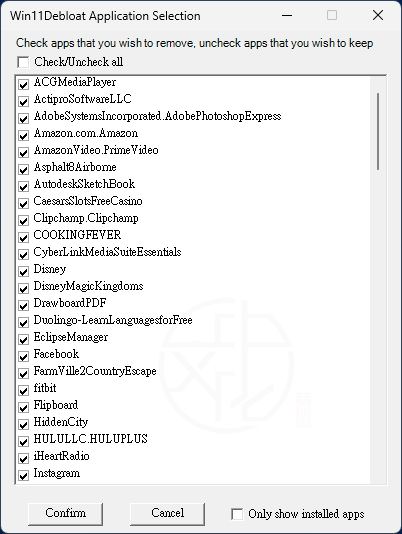
勾選右下角「Only show installed apps」僅顯示本台電腦已安裝的應用程式,根據您的需求勾選要刪除的軟體,也可以利用勾選左上方的核取方塊「Check/Uncheck all」來全部勾選或取消全部勾選,確認好之後再按下左下角的 [Confirm] 按鈕之後繼續進行移除工作。
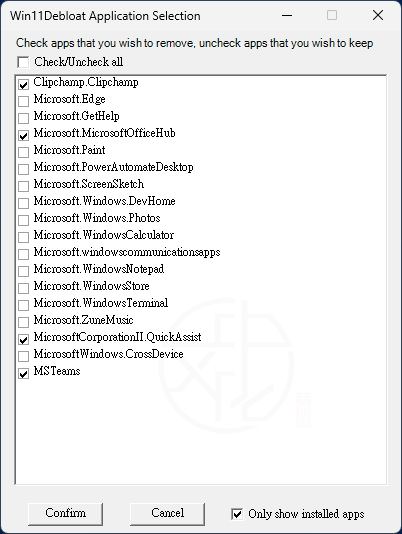
輸入 3 移除應用程式模式後會列出此軟體預設要移除的應用程式
勾選右下角「Only show installed apps」僅顯示本台電腦已安裝的應用程式,根據您的需求勾選要刪除的軟體,也可以利用勾選左上方的核取方塊「Check/Uncheck all」來全部勾選或取消全部勾選,確認好之後再按下左下角的 [Confirm] 按鈕之後繼續進行移除工作。
輸入 0 顯示以下更多的詳細資訊,再按下任何鍵返回主畫面
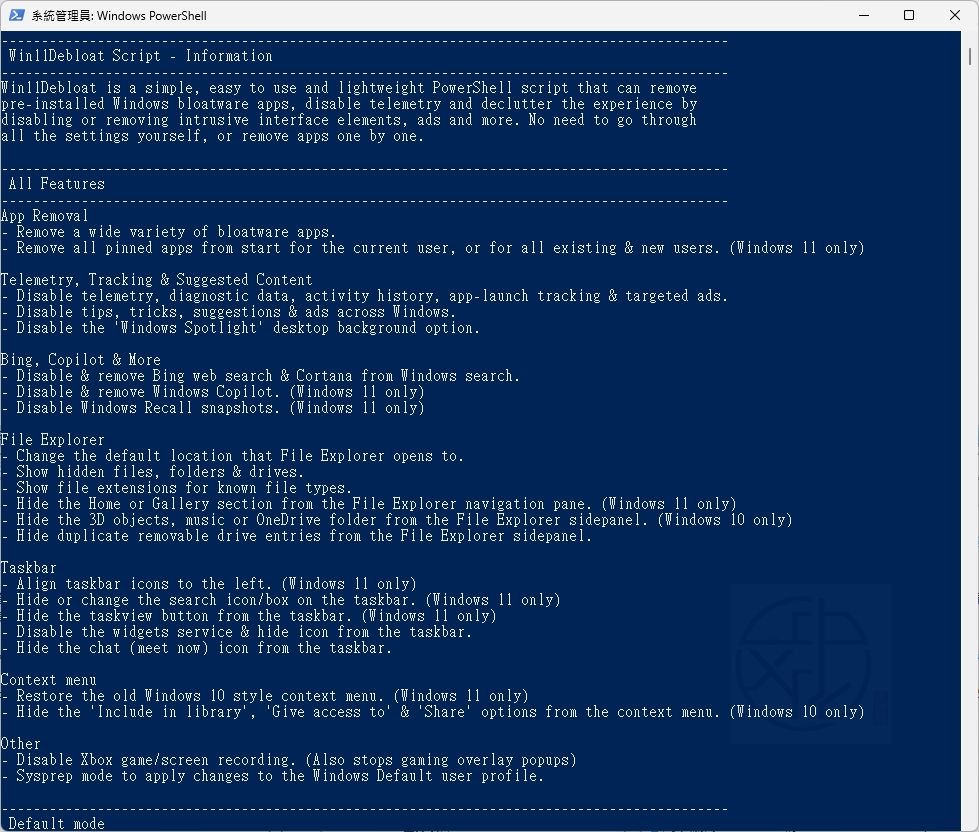
建議您在使用 Win11Debloat 應用程式之前先建立還原點,以防遇到問題。
Win11Debloat 所做的所有變更都可以輕鬆還原,幾乎所有的應用程式都可以透過 Microsoft Store 重新安裝。